Listening Room.
Play a song. Settle into the sound.
Ready when you areLoading connects to YouTube for this session.
Your next listen is ready.
Choose a song above, then load the player.Hello
Adele
About the sound
YouTube playback uses the official video player. Its audio quality is managed by YouTube; this app cannot turn it into a lossless or high-resolution source. The video stays visible, and equaliser controls apply only to local audio.
Audio files play on your device through a neutral audio path. EQ changes the frequency balance; stereo width changes the relationship between left and right. Neither restores information removed during compression. The meters show actual local audio, and the processing rate describes the browser engine rather than your original file or headphones.
Opus is an efficient lossy codec. Its transform and perceptual coding happen during encoding, so they are not extra “enhancement” switches here. YouTube’s own loudness and Stable volume settings are separate from this app.
Choose a song, paste a YouTube playlist, or open an audio file. Keep the controls simple, and adjust the sound when the source allows it.
Start with a song
Choose Adele — Hello from the popular songs, load the player, then press Play. YouTube handles the video and audio. The player stays visible, and its own controls remain available.
For a longer listen, paste a playlist link or choose the starter collection. Previous, next, shuffle and repeat help you move through it. A link that includes both a song and a playlist lets you choose which one to load.
YouTube decides whether a particular upload can play here. If it is unavailable, use Open on YouTube or choose another song.
Adjust an audio file
Open a file from your device to use the equaliser. Start at neutral, raise a low-frequency band by a small amount, then use bypass to compare. A little adjustment is often enough; more bass does not automatically mean better sound.
The ten bands let you change different parts of the sound. Balance changes the relative level of the two channels. Stereo width changes their shared and differing content, while mono brings them together. Reset returns the settings to neutral.
The spectrum shows where the energy is in the audio currently playing. The level meters show the two output channels. These are measurements of your local playback, so they appear in Audio file mode rather than pretending to read the YouTube stream.
Your file stays on your device. Supported formats depend on your browser. A file that the browser cannot decode will need another player or a compatible copy.
What happens to the sound?
An equaliser changes tone. A volume adjustment changes level. Neither can restore information that was removed when a recording was compressed.
Modern codecs such as Opus can make efficient use of a small stream by representing perceptually important detail. The result still depends on the source, encoding choices, listening conditions and listener. There is no switch here that makes every stream lossless.
YouTube manages its own stream and any processing it applies. Local audio starts with neutral settings, and the controls show the processing you choose. Listening Room does not add an automatic compressor or claim to measure loudness in LUFS.
The processing sample rate describes the browser’s audio graph. It is not a certificate of the original recording’s resolution, and it does not establish what your headphones, speakers or operating system deliver.
For the implementation details, see the YouTube player API, the Web Audio specification and the Opus codec documentation.
Quick reference and FAQ
Choose a song, paste a YouTube playlist, or open an audio file. YouTube handles its own playback. Local files unlock an equaliser, stereo controls and real sound measurements without uploading your music.
Key Terms
- Equaliser
- Stereo
- Audio spectrum
- Sample rate
- Lossy compression
Frequently asked questions
Can Listening Room equalise a YouTube video?
No. YouTube playback uses its official embedded player, which does not expose the audio for a custom equaliser or spectrum analyser. Those controls work with audio files you open locally.
Are my audio files uploaded?
No. Audio files play and are processed in your browser on your device. YouTube playback separately connects to YouTube after permission or explicit activation.
Does this turn YouTube into lossless or high-resolution audio?
No. YouTube chooses the stream it supplies. Listening Room cannot recover information removed by compression. Local-file support depends on the browser, and the processing sample rate does not establish the original file's resolution or the output device's format.
Can I play a whole playlist?
Yes. Paste a YouTube playlist link, choose a whole playlist when a link contains both a video and a playlist, or use the starter collection. Some videos and playlists may be unavailable or may not allow embedding.
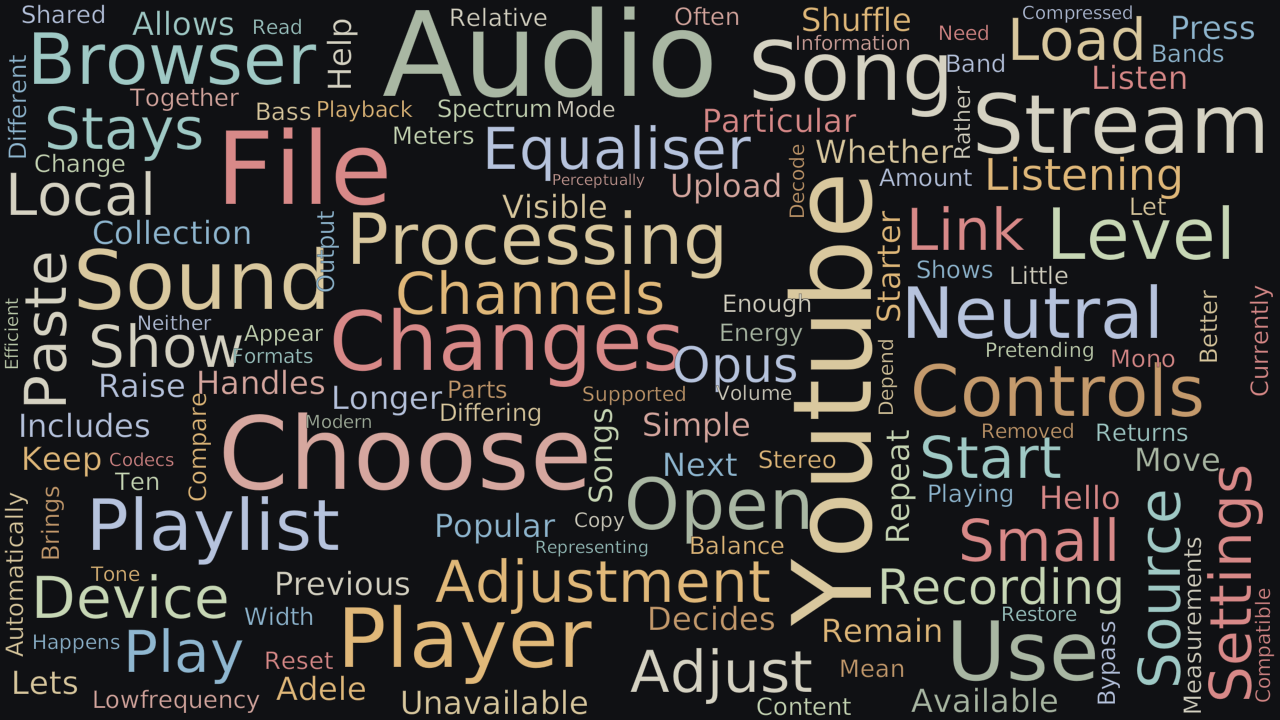
Word Cloud
Related reading
Selected by shared topics and section, with closer publication dates breaking ties.
Comments
Read the conversation or leave a thought for review. Comments load when this section is in view.